Portfolios
Group trades into named buckets so analytics can slice the way you think about your trading.
A portfolio is a user-defined bucket of trades, scoped to your organization. Each trade can belong to at most one portfolio (or none), and most pages - Dashboard, Calendar, Trades, Positions, Strategies, Risk & Insights - accept a portfolio filter to narrow the view. The filter supports selecting multiple portfolios and a separate No Portfolio Assigned option.
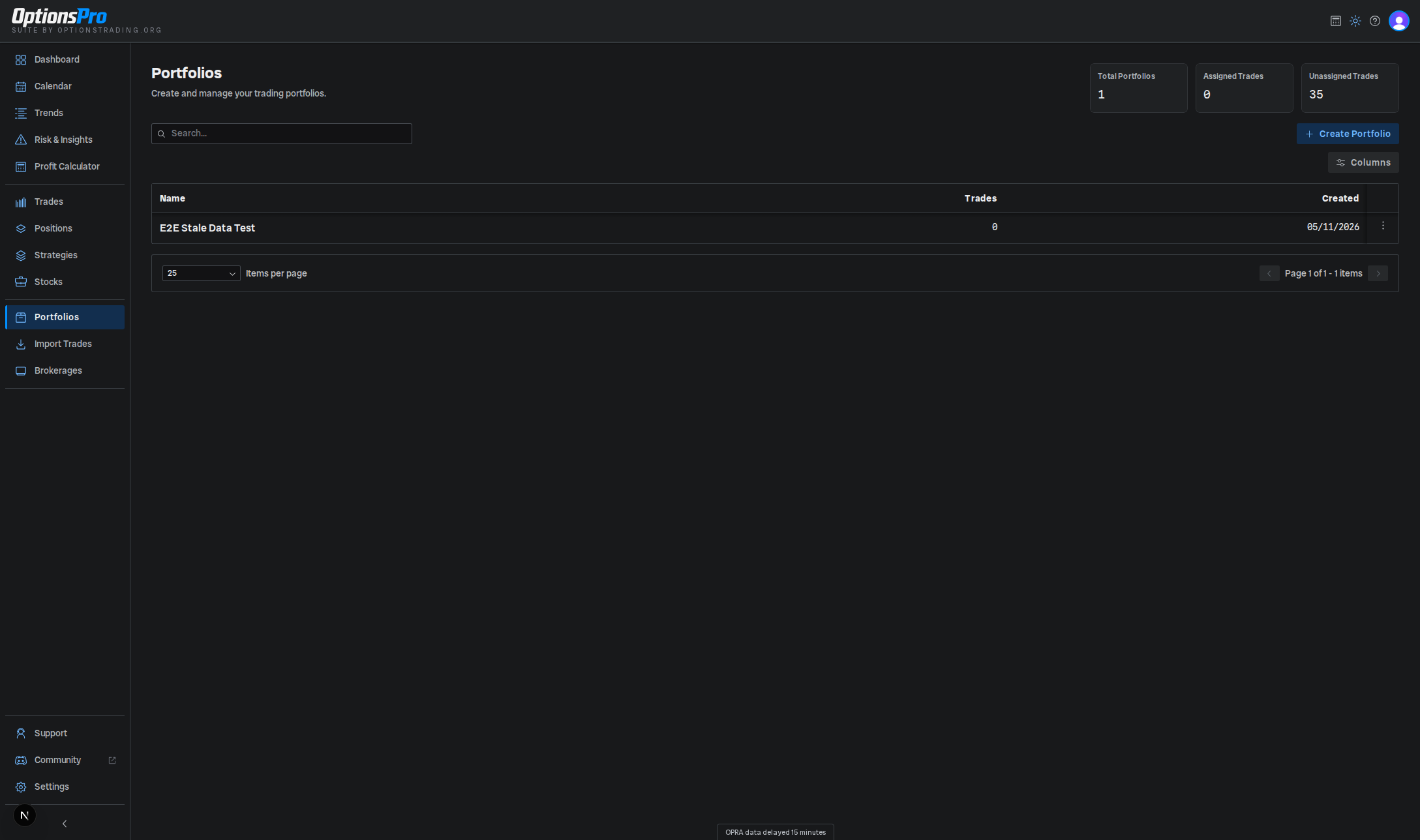
Portfolios are a Pro-tier feature. The free tier shows a Pro upgrade card on the Portfolios page.
Why portfolios?
Common groupings:
- By strategy style - "Theta farming" vs. "Long premium".
- By account type - "Taxable" vs. "Roth IRA".
- By capital pool - "Core account" vs. "Risk capital".
A portfolio's analytics are independent: filters in Dashboard, Calendar, and the rest of the app reduce the data set to just the trades you've assigned there.
Creating a portfolio
- Open Portfolios from the sidebar.
- Click Create Portfolio.
- Enter a name and confirm.
There's no color picker and no account selector - portfolios are populated by assigning trades, not by linking accounts.
Assigning trades
Newly synced and manually entered trades start unassigned - there is no default portfolio. Trades are assigned manually, one of two ways:
- In the Trades table, each row's Portfolio column is an inline dropdown. Pick a portfolio to set the assignment, or clear it to leave the trade unassigned.
- The AI assistant can assign trades on your behalf, but only after you approve the action - see AI Insights.
The Trades page also offers a Group by Portfolio view mode that buckets the visible trades into per-portfolio groups (with an Unassigned group) for quick review.
The Portfolios page itself shows summary cards for Total Portfolios, Assigned Trades, and Unassigned Trades so you can see at a glance how much of your activity is currently sorted.
Renaming and deleting
The row's actions menu has:
- Rename - opens a dialog to edit the portfolio's name.
- Delete - removes the portfolio. Trades that were assigned to it become unassigned; they're not deleted. You'll be asked to confirm, and the action can't be undone.
See Bulk Actions for selection controls across the app.
Bulk actions
Check the box on one or more portfolios (or the header checkbox to take every row on the page), then use the Delete button that appears above the table. The confirmation dialog names how many portfolios it will remove and repeats the rule that matters: trades assigned to them become unassigned, not deleted. This can't be undone.
There's no bulk rename - rename from the row's actions menu instead.