Brokerages
Connect, manage, and reconnect the brokerage accounts that feed OptionsPro with trade data.
OptionsPro imports trade history from your brokerage via SnapTrade, a secure aggregation layer. Your broker credentials are entered on your broker's own login page during the connection flow - OptionsPro never sees or stores them. Positions and P&L are computed from the imported trades.
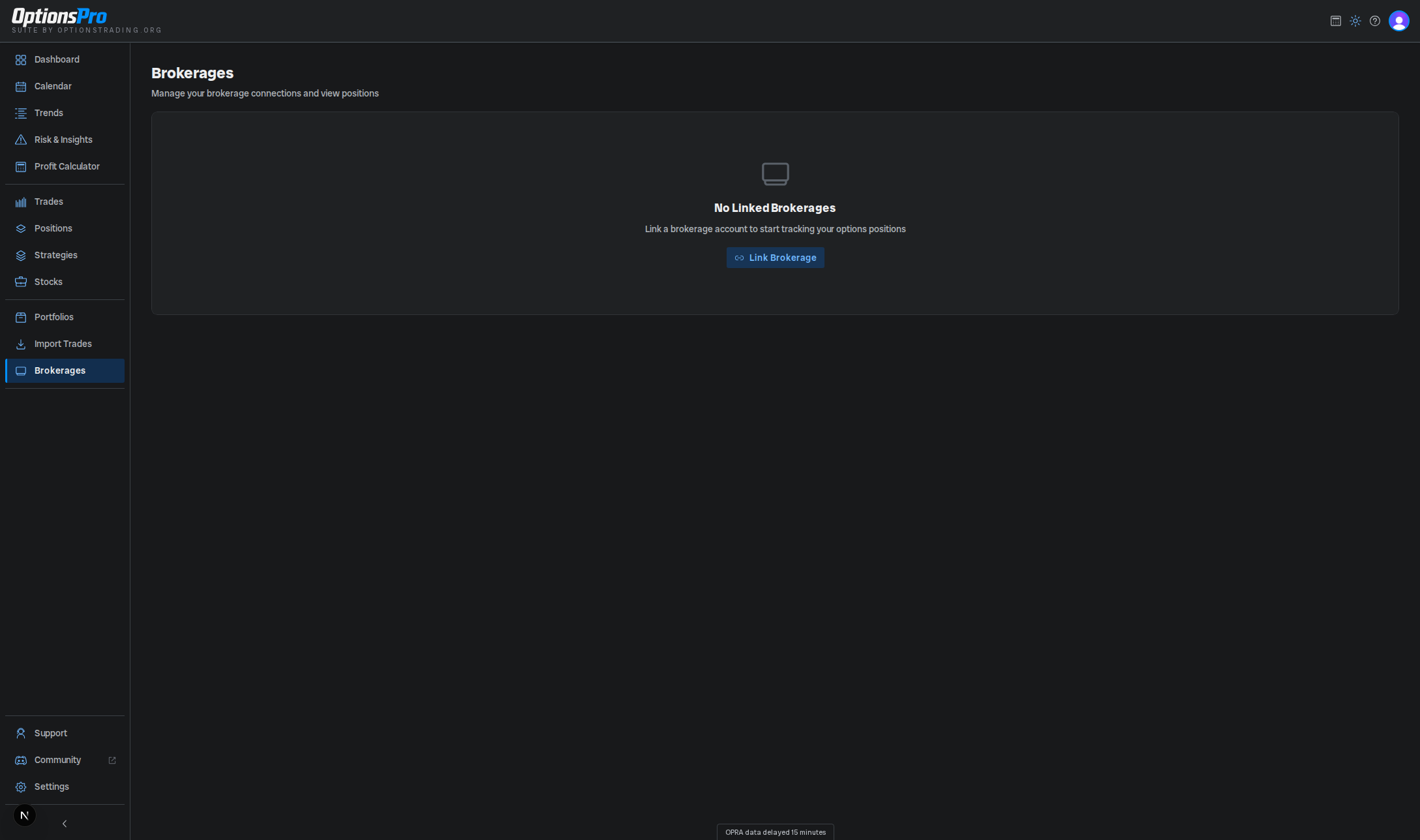
Brokerage connections are a Pro-tier feature. On the free tier the Brokerages page shows a Pro upgrade card instead - see Subscription for what each tier includes.
What's in this section
- Connecting a brokerage - step-by-step first-time setup.
- Multiple accounts per broker - when one broker exposes several accounts.
- Reconnecting - what to do when a connection expires or breaks.
- Disconnecting - revoke access and what happens to your data.
- Data quality warnings - what the orange badge on a connection is telling you.
Supported brokers
The live list of supported brokers is always shown inside the app on the Select Brokerage modal that opens from the Link Brokerage button, with how far back each one can pull history. The same list, including Interactive Brokers, is written out in Connecting a brokerage. If your broker isn't listed, use Manual Trade Entry, the Trade Import wizard, or reach out to support to request integration.
Interactive Brokers connects through SnapTrade's Flex integration and can take 1 to 2 business days to deliver its first trade data. See Interactive Brokers.
Read-only guarantee
OptionsPro only calls SnapTrade's read endpoints. We cannot place, cancel, or modify orders on your behalf. Revoking access is instant - see Disconnecting.
How sync works
Sync is primarily webhook-driven: when your broker reports new transactions to SnapTrade, OptionsPro imports them shortly after. A safety-net job also runs every two hours during market hours - pre-market through an hour after the extended close, weekdays - to catch anything missed. Because that job is off over the weekend, three extra catch-up passes run at Friday 10 PM, Saturday 10 AM and Sunday 6 PM ET, so a Friday fill whose webhook went astray doesn't sit there looking open until Monday. You can also force a refresh from the brokerage row's action menu at any time.
How quickly a new trade reaches OptionsPro is set by your broker. Most brokers report on demand, so a fill appears within minutes. Fidelity and Interactive Brokers publish only a once-a-day snapshot, so trades on those connections typically appear the next business day and Refresh Data cannot speed that up. Each broker's sync speed is shown in the Select Brokerage modal and in When new trades appear.
See Bulk Actions for selection controls across the app.
Bulk actions
Check the box on one or more connections, then use the actions that appear above the table:
- Refresh - queue a data refresh for every selected connection at once. Same action as the row menu's Refresh Data, and subject to the same broker-side limits: a once-a-day broker still won't report sooner.
- Disconnect - disconnect every selected connection, after a confirmation step. This is as destructive as doing it one row at a time and deletes each connection's synced data - read Disconnecting first.
Only brokerage rows are selectable. The account rows nested beneath them have no checkbox, since both actions operate on the whole connection.
Fee overrides
Each brokerage row's action menu includes Fee Override, which lets you set a custom per-contract or per-trade commission/fee that applies to every trade synced from that brokerage, overriding whatever the broker reported. See Fee Overrides for the full set of override modes and how precedence works when a trade also has its own override.
Data quality warnings
If OptionsPro can't fully reconcile a broker's reported history - missing fills, quantity mismatches, or unresolved cash flows - or if our copy of an account's trade history has fallen behind, an amber banner appears on the Brokerages page reading "Some P&L can't be reconciled with your broker." The banner itself isn't clickable; it points you to a small orange warning badge on the affected connection's row - click that badge to open the Data quality dialog and see exactly what's affected and what to do about it.
Data Quality Warnings covers every reason the dialog can report, including the trade-freshness notices that tell you how current your imported history actually is.