Trades
Every options execution - opens, closes, and expirations - from your connected brokerages and manual entries. Sortable, filterable, and the entry point for fee overrides, manual entry, and trade-by-trade analysis.
The Trades page is the canonical journal for every options execution in your account: opening trades, closing trades, and expiration events. In the default view each row is one executed leg; in grouped views rows collapse into multi-leg orders, positions, or portfolios. Every row is the launchpad for closing, overriding fees, viewing the linked position, or jumping to the trade details modal.
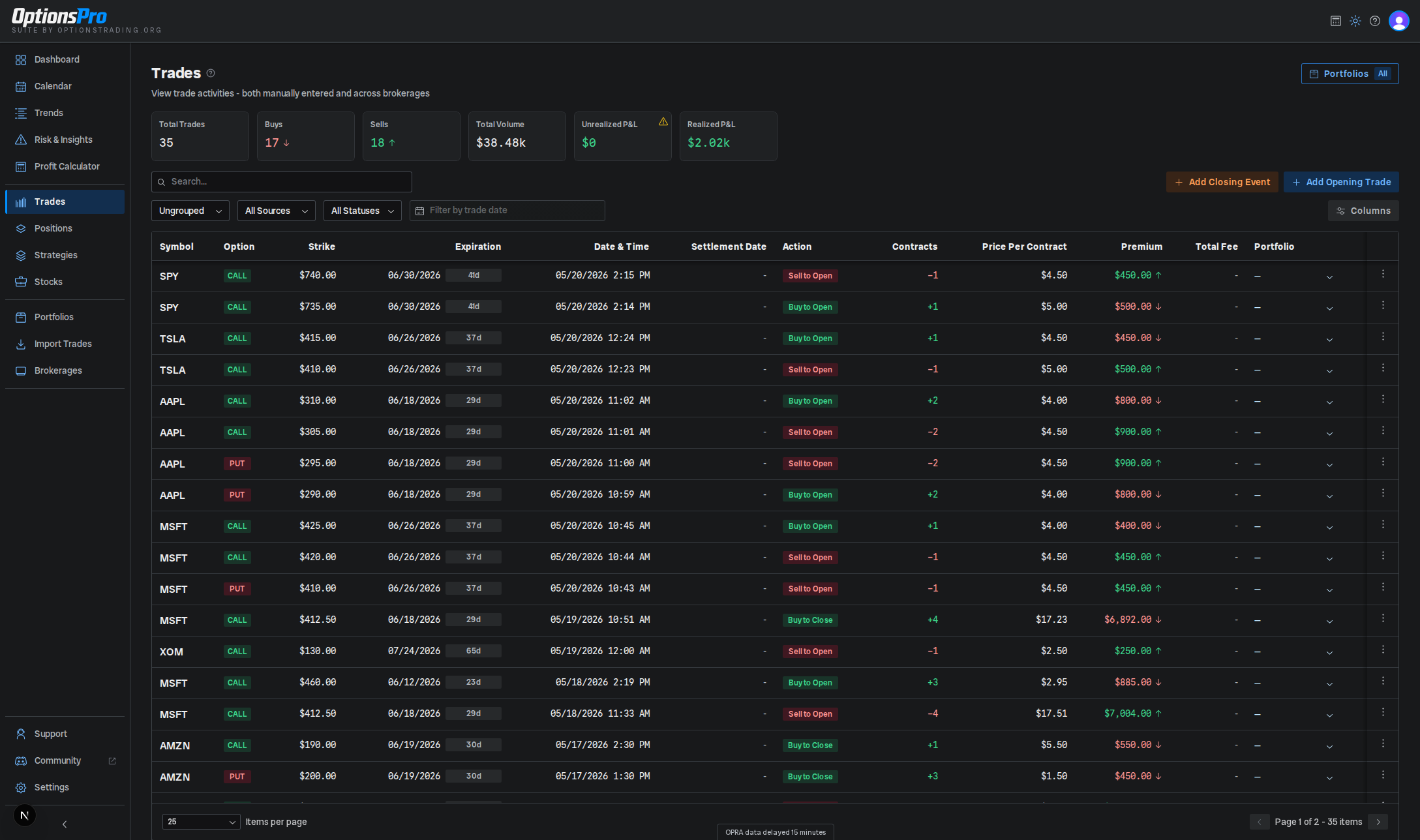
Columns
The default columns, in order:
- Symbol - underlying ticker.
- Option - call or put indicator.
- Strike - option strike price.
- Expiration - option expiration date with a relative-days badge.
- Date & Time - execution timestamp in your configured timezone. Some brokers (for example Schwab / thinkorswim) report only the trade date, not the time; those trades show the date alone.
- Settlement Date - broker-reported settlement date.
- Action - Buy to Open / Sell to Open / Buy to Close / Sell to Close. Expiration events render as an Expired Worthless / Expired ITM / Expired OTM badge, and opening trades that were closed by expiration show both their action badge and the matching expiration badge. An amber Unverified badge or a blue Edited badge trails the action badge when a trade was never matched to a contract on the options chain, or is running on values you overrode - hover either badge for what it means.
- Contracts - number of contracts in the trade.
- Price Per Contract - per-contract execution price.
- Premium - total premium for the trade.
- Total Fee - broker fees, colored if a fee override is active (blue for trade-level override, teal for brokerage-level).
- Portfolio - the portfolio this trade is assigned to (editable inline).
Click any column header to sort by that field. The column customizer at the right of the filter bar lets you toggle and reorder columns.
Filters
- View - switch between Ungrouped (one row per execution), Group by Position (rows collapse into positions, expandable to legs), Group by Strategy (Pro; strategies expand to positions, which expand to their trades), Group by Portfolio (rows grouped by portfolio assignment), Group by Order (Pro; each multi-leg order is one row, see below), and Group by Trade (Pro, Beta; a position and all its adjustments and rolls as one row, see below). Positions without a detected strategy appear together under Ungrouped in the strategy view. Each option carries a one-line description inside the dropdown; the closed picker shows the view's name alone. See Which view should I use?.
- Source - All Sources, Manual, or a specific connected brokerage. Hidden until you have at least one brokerage connected or one manual trade.
- Account - narrow to a specific account. Hidden when the active source has only one account, or when Manual is selected.
- Status - All Statuses, Open, or Closed. In Group by Order, this filter is labeled All executions, Opening executions, or Closing executions. It selects the execution's action, not whether its contracts remain open. Use Group by Position to filter by position status.
- Filter by trade date - date-range picker that filters by execution date.
- The Portfolio filter (top-right of the page header, separate from the filter bar) narrows to selected portfolios.
- The table's Search box matches against symbol, underlying symbol, and the broker-reported description.
Summary cards above the table reflect the active filters: Total Trades (Orders in Group by Order view), Buys, Sells, Total Volume, Unrealized P&L, and Realized P&L. A small refining indicator appears next to Realized P&L when expiration trades are still being enriched, and a pending indicator appears on Unrealized P&L when live market data is still streaming in.
On a very large book an amber notice can appear above the table saying your trade history is too large to load in full. The list and the summary counts then cover your most recent activity, and older trades aren't shown; Realized P&L is read from your saved P&L and isn't limited to the rows on screen. The filters and the search box narrow what you see out of the rows that were read rather than widening the read, so an older trade outside it can't be reached by searching for it - see Large Trade Histories.
For large accounts, the trade list and its filters use the complete stored history, including older trades. The partial-read notice above applies when the bounded read is used instead. Reports wait for an active P&L rebuild; see Large Trade Histories.
Exporting what you've filtered
Export, beside the portfolio filter in the page header, downloads the option trades the table is showing - with your view's filters, date range, portfolio selection and search applied - as a CSV. It's a Pro feature; on a free account the button carries a gold diamond and opens the Pro preview, and Download my data in Settings still exports your whole journal on any plan.
The filtering runs on the server, so the file covers every matching trade in your history rather than only the rows the page managed to read. A couple of views can't be exported, and the button's tooltip says so. See Exporting Your Data for the full rules and the columns.
Which view should I use?
Every view shows the same trades; it only changes how they are grouped into rows.
| View | What a row is | Use it to |
|---|---|---|
| Ungrouped | Every individual buy and sell, one row each. | Check a single fill, its price, fees or date. |
| Group by Position | Everything you did in one contract (one strike and expiration), from opening to closing. | See whether a contract is still open and what it made. |
| Group by Strategy (Pro) | Legs that form a recognized shape, like a spread or iron condor, found automatically or grouped by you. | See a spread or condor as one row with its combined P&L. |
| Group by Portfolio | Trades sorted into the portfolios you created. | Compare the buckets you track separately. |
| Group by Order (Pro) | Fills placed together in one ticket. Opening and closing orders are separate rows. | Match what your broker shows as one order. |
| Group by Trade (Pro) | One trade idea from first open to final close, including every adjustment and roll. | See what a trade made in total after all its adjustments and rolls. |
If you are not sure, start with Group by Position. To see a whole multi-leg trade, use Group by Strategy. To follow it through its adjustments and rolls, use Group by Trade.
Group by Order
Group by Order (Pro) shows a multi-leg order - a spread, iron condor, butterfly, calendar or any other combo you sent as one ticket - as a single row, the way your broker shows it. Click the row to see its legs underneath. On the free plan the option shows a diamond and opens a Pro preview instead.
The order row shows:
- Symbol - the underlying, the number of legs, and a Grouped by day badge when the grouping is a best guess (see below).
- Action - Opening order or Closing order. Opening groups also show Open, Partially closed, or Closed for their opening quantities. Expand a group to see the remaining contracts on each leg. Status unavailable means the history does not reliably establish the remaining quantity, for example during a pending update or when multiple indistinguishable opening fills cannot be allocated a partial close.
- Contracts - the number of order units: the largest count that divides every leg. A calendar of 8 short front-month and 16 long back-month contracts is 8x. Separate fills of the same contract count as one leg, so selling 3 and then 1 of the same call is 4x.
- Price Per Contract - the net price per unit, marked DB (debit) or CR (credit). It is the plain sum of the legs' real fill prices, each weighted by its share of the unit. Fills of the same contract use their average price.
- Premium - the order's net premium: the sum of the legs' premiums, green for a credit and red for a debit.
When a broker reports only the combo's combined price on every leg (Webull does this for some multi-leg orders), that price is counted once for the order, not once per leg.
Grouping is for display only. It does not change positions, P&L, strategies, or anything else in your account, and every leg keeps its own row actions.
Opening orders remain in history after they close. Closure labels use the opening fills' account and position lifecycle, with first-in, first-out matching for partial closes. Reopening the same contract does not reopen an older entry. Group status includes opening legs hidden by search or portfolio filters. The Grouped by day badge describes how executions were grouped, independently of their closure status.
How legs are matched into an order depends on what your broker reports:
- Brokers that report the exact execution time - legs on the same account, underlying, and direction (opening or closing) that filled at the same instant are one order. Separate orders on the same contract stay separate rows.
- Brokers that report only the trade date (for example Schwab / thinkorswim) - there is no time to match on, so legs on the same account, underlying, direction, and day are shown as one order, marked Grouped by day. Legs of different expirations are kept as separate orders (a 0DTE butterfly and a next-day iron condor opened the same day are two rows), unless the expirations pair up as a calendar: the same strikes sold in one expiration and bought in the other, as in a calendar or double calendar. If two orders on the same expiration were really separate, open the order's action menu and choose Split into legs. Each leg then shows a link icon you can click to group the order back. Splits are remembered in your browser.
- Manual entries - legs are one order only when they were entered together, with the same date and time. Separate manual entries on the same day are never grouped.
Expiration, assignment, and exercise rows are not orders and always appear on their own rows. So is a close dated after its option expired: some brokers (Schwab, for example) report the cash settlement of an in-the-money option a day after it expires. Pages in this view count orders, so an order's legs never split across two pages.
Group by Trade
Group by Trade (Pro, Beta) shows one trade idea as a single row, from the first opening order to the final close. A butterfly you adjusted twice, or a long call you sold short calls against month after month, is one trade instead of a dozen positions. On the free plan the option shows a diamond and opens a Pro preview instead.
Use the dropdown next to the view picker to switch between Open trades and Closed trades. The view opens on open trades, so look under Closed trades for anything you have already exited.
Each row shows:
- Trade - a name built from the structures in it, such as "SPXW 10/20 Put Broken Wing Butterfly", and the number of legs.
- Status, Opened and Closed dates.
- Realized - P&L from every leg you have closed, adjustments and rolls included.
- Unrealized - estimated P&L on the legs still open, from an estimated fair value refreshed about every 2 minutes in market hours. When only some open legs have a price yet, an info icon says which legs are waiting.
- Total - realized plus unrealized.
- Max risk - the worst loss at expiration of the legs still open, shown when they share one expiration.
Expand a row with the arrow on its left to see its legs and a timeline of every order in the trade, with each order's net credit or debit.
How legs are linked
Legs join the same trade when the evidence is clear:
- They form one strategy, either detected automatically or one you grouped yourself with Custom Strategy Grouping. A custom strategy you built keeps its legs in one trade.
- They were placed together in one order.
- They share an expiration and were open at the same time.
- A leg was opened the same day you adjusted a trade that stayed open.
- A short option was sold against a longer-dated option you held, as in a poor man's covered call or a diagonal.
When the evidence is weaker, for example a trade you closed and a similar one you opened soon after, the row shows a Merge? tag instead. Open the row to see why, then choose Merge to join them or Keep separate to dismiss the suggestion for good. Nothing is joined unless you choose to.
Changing a trade
In the expanded row you can:
- Split selected legs into a new trade - tick legs and move them into a trade of their own.
- Merge with... - join this trade with another one on the same account and underlying.
- Rename - give the trade your own name.
- Reset to automatic - shown after you merge or split. It hands the trade back to automatic grouping.
Your merges, splits and names are kept when new trades come in.
What this view does not do yet
- The filter bar is replaced by the view picker and the Open trades / Closed trades dropdown, so the Source, Account, search and date filters aren't available here, and the summary cards above the table aren't shown.
- It always covers every portfolio, because one trade can have legs in more than one.
- Export is not available here. Switch to Ungrouped or Group by Order to export your fills.
- Shares are not part of a trade yet, so a covered call shows only its option legs.
Bulk actions
Check the box on one or more rows to select them, then use the actions that appear above the table:
- Assign to Portfolio - move every selected trade to a chosen portfolio in one step.
- Override Fee - apply a fee override to every selected trade in one step.
- Delete - remove every selected trade at once, with a confirmation step first. Broker-synced trades are skipped; manual and file-imported trades can be deleted. See Bulk Actions for selection limits.
- Group into Strategy (Pro) - combine the selected trades' positions into one strategy. Enabled once the selection covers at least two positions on a single underlying; because grouping works on whole positions, any other trades in those positions come along, and the modal says so before you confirm. See Custom Strategy Grouping.
Selecting a Group by Position, Group by Strategy, Group by Portfolio, or Group by Order header row selects every trade beneath it. Parent checkboxes reflect the selection state of those trades, and the selection bar always reports the number of trades selected. The Select all button applies the action to every trade matching your current filters, not just the rows on the current page.
Row actions
Open the action menu on any row:
- View Details - opens the Trade Details modal.
- Edit Trade Details - opens the trade in an editable form and saves what you change as an override, leaving the original record untouched. Present on every row, broker-synced ones included. See Editing trade details.
- Override Fee - opens the fee override modal.
- Close Position - opens the Close Position flow. Only shown for manual opening trades that still have open contracts (or were closed by expiration). The label reads Close Position (Override Expiration) when the leg already closed via expiration and you want to replace that with a real close.
- Add Closing Trade - the same close flow, but pre-filled with this trade's contract count instead of the position's full remaining quantity. Shown on the same rows as Close Position, and it's the quicker route when you're closing one fill of a scaled-in position.
- View Position - jumps to the position this trade belongs to.
- Share - generates a shareable image card for the position (or, on strategy rows, the strategy) the trade belongs to. See Sharing.
- Delete Trade - only shown for trades you entered manually. Delete Settlement Trade appears instead for synthetic expiration trades. Broker-imported trades cannot be deleted.
- Add to Existing Strategy (Pro) - on position rows in the grouped views, move this position into a strategy you already have on that underlying.
- Break up (Pro) - on strategy rows in Group by Strategy view, split the strategy into simpler ones. See Custom Strategy Grouping.
Header buttons
Two buttons sit above the table:
- Close Position - record a closing trade against an existing open manual leg. See Closing Trades.
- Add Trade - open the Options Chain Selector to record a new opening position. Its dropdown caret offers the other entry methods enabled for your account. Quick Entry types strikes and fills straight in, with no chain load. Manually Enter Trade covers contracts that can't be picked off a chain.
See Manual Trade Entry for the details.