Trade Details
A full breakdown of one trade - contract, execution, financials, and notes.
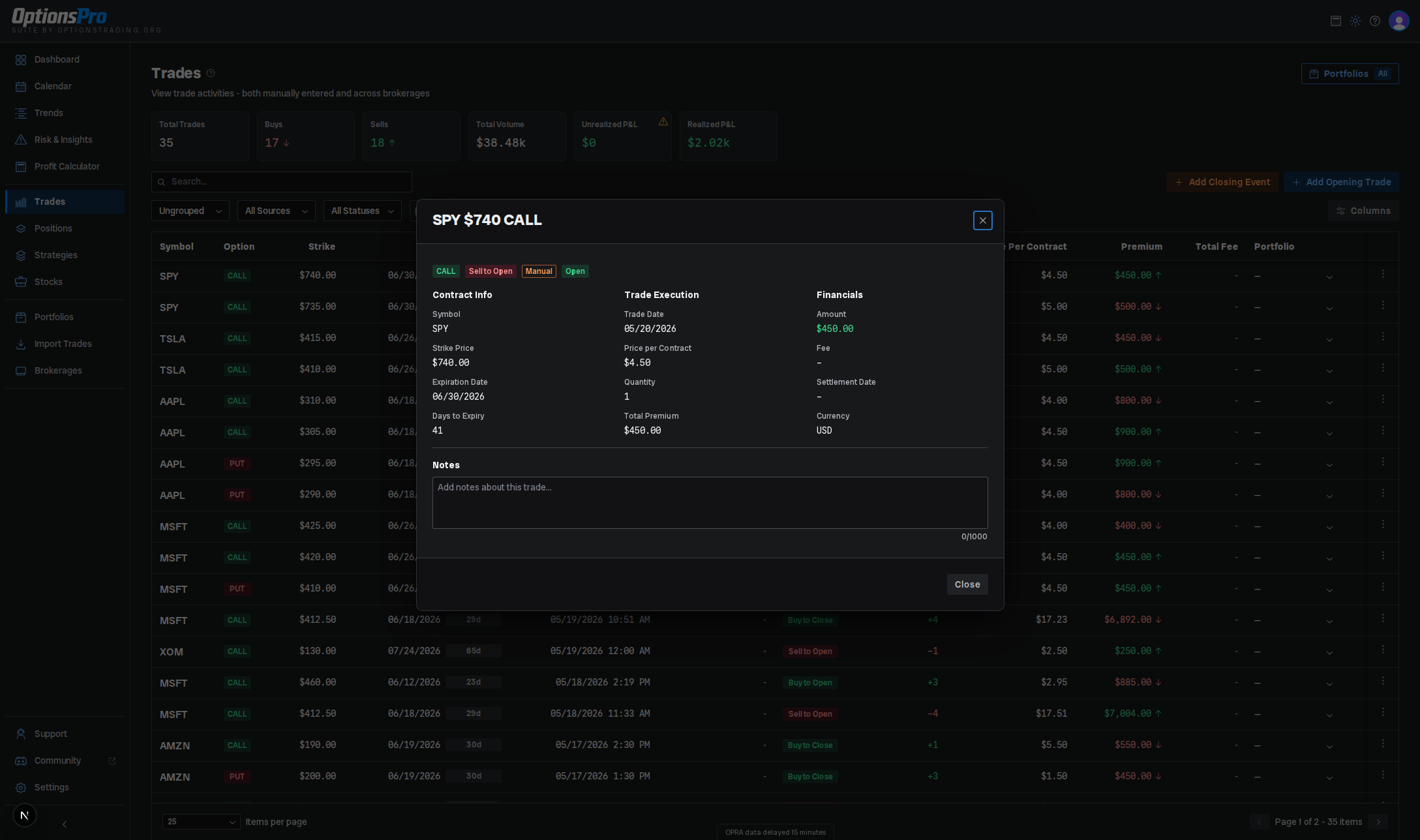
The Trade Details modal opens from a row's View Details action in the Trades table and surfaces everything we know about that single execution.
The modal title is the contract itself - for example, AAPL $150 CALL.
Layout
A row of badges at the top - option type (Call/Put), trade action (Buy to Open / Sell to Close / etc.), source (SnapTrade, Manual, or Expiration), and status (Open/Closed). Trades from the import wizard also carry a source badge, though it isn't given a friendly label yet.
Where they apply, the data-quality badges from the Trades table trail the rest: an amber Unverified badge when the trade was never matched to a contract on the options chain, and a blue Edited badge when the trade is running on values you supplied. Hover either one for what it means.
Original Values
An Original Values block appears above the grid on a trade you've edited. Because the grid below shows the corrected figures, this block is the only place in the app that still shows what your broker or import file actually reported: symbol, strike, expiration, action, trade date, quantity, and price per contract, as they arrived.
It's absent on a trade with no overrides, which is most of them.
Below the badges, a three-column grid:
Contract Info
- Symbol - underlying ticker.
- Strike Price
- Expiration Date
- Days to Expiry - relative days (or "Expires Today" / "Expired"), colored orange within 14 days and red within 7.
Trade Execution
- Trade Date
- Price per Contract
- Quantity
- Total Premium - absolute dollar value of the execution, regardless of buy/sell direction.
Financials
- Amount - signed dollar amount, colored green for credit and red for debit.
- Fee - the broker-reported fee.
- Fee Override - only shown for older, legacy per-trade overrides. A fee override set through the current Override Fee modal, or an active brokerage-level default, changes P&L everywhere but does not currently appear in this modal - check the Trades table's fee column for the effective fee on the trade.
- Settlement Date
- Currency
Account details
For broker-imported trades, an Account Details section follows with brokerage name, account name, and account number.
Expiration info
If the trade closed via expiration, an Expiration Info section appears with the underlying price at expiry and a badge if it expired worthless.
Notes
A Notes field at the bottom of the modal accepts free-form text up to 1000 characters, with a live character counter under the field. Changes auto-save after a short pause; a small "Saving..." / "Saved" indicator next to the heading reflects the current state. Notes survive across reopens of the modal and are scoped to the trade.
Editing the trade itself
The modal is read-only apart from the Notes field - it does not edit the trade. To correct a trade's values, use Edit Trade Details on the row's action menu, which stores your values as an override and leaves the original record intact - see Editing trade details. To remove a manual trade outright, use Delete Trade on the row's action menu. To override fees, use Override Fee on the row instead.
The modal does not display realized/unrealized P&L, broker fills, or attachments - it shows the trade record as imported (or entered) plus your notes. P&L lives on the Positions view, where opening and closing trades are paired up.
Trades
Every options execution - opens, closes, and expirations - from your connected brokerages and manual entries. Sortable, filterable, and the entry point for fee overrides, manual entry, and trade-by-trade analysis.
Manual Trade Entry
Add trades that aren't in your brokerage - historical fills, off-platform trades, or paper-trading scenarios.